
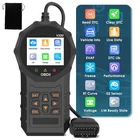
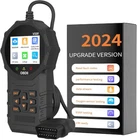


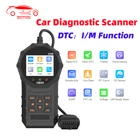
Automotive OBD2 Scanner OBDII Code Reader Car Diagnostic Tool Check Engine Fault
$ 10.56
Description
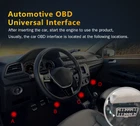
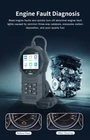
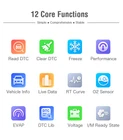
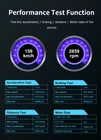
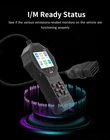
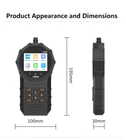
Home Payment Shipping About us Contact us Details Features OBD II/EOBD Standard Protocol Support: The V320 diagnostic device supports nine standard protocols of OBD II/EOBD, allowing compatibility with a variety of car models for fault diagnosis and data reading. Car Battery Voltage Test: It can detect and display the current voltage of the car battery, helping users understand the battery status. Fault Code Reading and Clearing: It can read the vehicle's fault codes and provide a clearing function to help users identify and resolve vehicle issues. Data Stream Reading: Real-time reading and display of the operating parameters of the car engine, such as engine speed, temperature, fuel consumption, etc. Freeze Frame Information: When a fault is detected, it can save the vehicle state information at the time of the fault for subsequent analysis. MIL Status Check: Check the status of the malfunction indicator light (MIL) to understand if there is a fault with the vehicle. Performance Test: Test the car's acceleration performance, braking performance, etc., to assess vehicle performance. Vehicle Information Reading: Read basic vehicle information, such as VIN number, engine model, etc. Oxygen Sensor Test: Test the working status of the oxygen sensor to assess the performance of the emission control system. Fuel Evaporation System Test (Mode 8): Check whether the fuel evaporation control system is working properly. Fault Code Information Inquiry: Provide detailed information inquiry for fault codes to help users understand the meaning of the faults. Data Stream Playback Function: Allows users to view and delete fault codes, data streams, and freeze frame information. Multi-language Support: Supports eight languages, including English, German, Italian, Dutch, French, Spanish, Chinese, and Russian, to meet the needs of different users. Supported Protocols The V320 diagnostic device supports the following nine automotive communication protocols to ensure compatibility with various car models' OBD systems: SAE J1850 PWM: A communication protocol that uses pulse width modulation signals with a transmission rate of 41.6Kbaud. SAE J1850 VPW: A communication protocol that uses voltage pulse width modulation signals with a transmission rate of 10.4Kbaud. ISO9141-2: A protocol that uses a 5 baud rate for initialization, followed by communication at a rate of 10.4Kbaud. ISO14230-4 KWP: A protocol that uses a 5 baud rate for initialization, followed by communication at a rate of 10.4Kbaud. ISO14230-4 KWP (fast init): Same as above, but with fast initialization. ISO15765-4 CAN (11bit ID, 500 Kbaud): A CAN bus communication protocol that uses an 11-bit identifier and a 500Kbaud rate. ISO15765-4 CAN (29bit ID, 500 Kbaud): Same as above, but with a 29-bit identifier. ISO15765-4 CAN (11bit ID, 250 Kbaud): A CAN bus communication protocol that uses an 11-bit identifier and a 250Kbaud rate. ISO15765-4 CAN (29bit ID, 250 Kbaud): Same as above, but with a 29-bit identifier. Car Diagnostic Steps Locate the OBD Port: First, find the OBD port of the car. The location of the OBD port varies by model but is typically found in the lower left side of the dashboard, above the throttle pedal. If you are unsure of the port's location, refer to the vehicle manual or search for the specific location using the vehicle model. Connect the Diagnostic Device: Connect the V320 diagnostic device to the car's OBD port using the provided connection cable. Start the Car: After connecting the device, start the car to allow the system to communicate. Access the Diagnostic Menu: Once connected to the vehicle, go to the main page of the V320 diagnostic device and select the "OBD/EOBD" menu, then press the OK button to enter the test function page. Select Test Functions: Use the directional keys to navigate and select the desired test function. Test functions include performance tests, data stream, fault code query, I/M readiness status, voltage detection, etc. Execute the Test: After selecting the appropriate test function, press the OK button to execute the test. The diagnostic device will read the relevant information from the vehicle and display the results. Settings Adjustment Steps Access Product Settings: On the main menu of the V320 diagnostic device, find and select the "Product Settings" option. Language Settings: In the settings menu, select the language option, then use the directional keys to choose the desired language and confirm with the OK button. Unit Settings: If you wish to change the display units (such as miles per hour or kilometers per hour), select the unit option in the settings menu and choose the desired unit system. Other Parameter Settings: Adjust other parameters as needed, such as backlight brightness, contrast, sound settings, etc. Save Settings: After making all desired adjustments, select the save option to retain the changes. Exit Settings: Once the settings are complete, select the exit option to return to the main menu or continue with other operations. Menu Interface Introduction Main Page: After connecting to the vehicle, the diagnostic device displays the main page, offering multiple options for the user to select. OBD/EOBD Menu: On the main page, select the "OBD/EOBD" menu and press the OK button to enter the test function page. This menu is the central entry point for car diagnostics. Diagnostic Menu: Includes the following sub-menus and functions: Performance Test: Test the car's acceleration performance, braking performance, distance tests, and gauge data. Data Stream: After entering the data stream page, the diagnostic device reads and displays the current real-time data stream information from the car's engine. Fault Code Inquiry: Allows users to inquire about the vehicle's fault codes and provides detailed information on the fault definitions. I/M Readiness Status: Checks whether the car's monitors are functioning normally, with OK indicating the monitoring test is completed, INC indicating the vehicle has not completed monitoring, and N/A indicating the vehicle does not support that monitoring. Voltage Detection: Reads and displays the current battery voltage data of the vehicle. Product Settings: Allows users to adjust various parameters of the product, such as language and unit settings. Navigation Keys: Used to navigate and select between menu options. Exit or Back Key: Used to exit the current menu or return to the previous menu level. Status Indicator Lights: Green Light: Indicates support for vehicle diagnostics. Yellow Light: Indicates that a fault has been detected in the vehicle. Red Light: Indicates that the device is powered on normally. Read Code Key: Used to execute the operation of reading fault codes. Confirm Key: Used to confirm the selected option or execute the chosen function. Product Settings: In the settings menu, users can perform the following actions: Select Language: Set the display language of the diagnostic device. Set Units: Adjust the display units, such as converting from miles per hour to kilometers per hour. Adjust Other Parameters: Such as backlight brightness, contrast, sound settings, etc. Precautions: Reminds users that the product is not compatible with new energy vehicles, hybrid vehicles, and models that do not conform to the OBD2 protocol. Warranty Disclaimer: Explains the situations not covered by the product warranty policy, such as abnormal use of the product, improper storage, unauthorized modifications, misuse, negligence, abuse, accidents, changes, improper installation, etc. detailed Special purpose of the product: fault diagnosis Product material: ABS Appearance color: black Product size: 195x100x30mm Supported languages: English, German, French, Spanish, Italian, Russian, Dutch, Chinese Supported models: Support all models with OBDII protocol Full set of configuration: One bag One product body One English manual Shipping Policy Payment Method Returns Policy Shipping Policy Payment Method Returns Policy Copyright©2017 DataCaciques Home Payment Shipping About us Contact us Details Features OBD II/EOBD Standard Protocol Support: The V320 diagnostic device supports nine standard protocols of OBD II/EOBD, allowing compatibility with a variety of car models for fault diagnosis and data reading. Car Battery Voltage Test: It can detect and display the current voltage of the car battery, helping users understand the battery status. Fault Code Reading and Clearing: It can read the vehicle's fault codes and provide a clearing function to help users identify and resolve vehicle issues. Data Stream Reading: Real-time reading and display of the operating parameters of the car engine, such as engine speed, temperature, fuel consumption, etc. Freeze Frame Information: When a fault is detected, it can save the vehicle state information at the time of the fault for subsequent analysis. MIL Status Check: Check the status of the malfunction indicator light (MIL) to understand if there is a fault with the vehicle. Performance Test: Test the car's acceleration performance, braking performance, etc., to assess vehicle performance. Vehicle Information Reading: Read basic vehicle information, such as VIN number, engine model, etc. Oxygen Sensor Test: Test the working status of the oxygen sensor to assess the performance of the emission control system. Fuel Evaporation System Test (Mode 8): Check whether the fuel evaporation control system is working properly. Fault Code Information Inquiry: Provide detailed information inquiry for fault codes to help users understand the meaning of the faults. Data Stream Playback Function: Allows users to view and delete fault codes, data streams, and freeze frame information. Multi-language Support: Supports eight languages, including English, German, Italian, Dutch, French, Spanish, Chinese, and Russian, to meet the needs of different users. Supported Protocols The V320 diagnostic device supports the following nine automotive communication protocols to ensure compatibility with various car models' OBD systems: SAE J1850 PWM: A communication protocol that uses pulse width modulation signals with a transmission rate of 41.6Kbaud. SAE J1850 VPW: A communication protocol that uses voltage pulse width modulation signals with a transmission rate of 10.4Kbaud. ISO9141-2: A protocol that uses a 5 baud rate for initialization, followed by communication at a rate of 10.4Kbaud. ISO14230-4 KWP: A protocol that uses a 5 baud rate for initialization, followed by communication at a rate of 10.4Kbaud. ISO14230-4 KWP (fast init): Same as above, but with fast initialization. ISO15765-4 CAN (11bit ID, 500 Kbaud): A CAN bus communication protocol that uses an 11-bit identifier and a 500Kbaud rate. ISO15765-4 CAN (29bit ID, 500 Kbaud): Same as above, but with a 29-bit identifier. ISO15765-4 CAN (11bit ID, 250 Kbaud): A CAN bus communication protocol that uses an 11-bit identifier and a 250Kbaud rate. ISO15765-4 CAN (29bit ID, 250 Kbaud): Same as above, but with a 29-bit identifier. Car Diagnostic Steps Locate the OBD Port: First, find the OBD port of the car. The location of the OBD port varies by model but is typically found in the lower left side of the dashboard, above the throttle pedal. If you are unsure of the port's location, refer to the vehicle manual or search for the specific location using the vehicle model. Connect the Diagnostic Device: Connect the V320 diagnostic device to the car's OBD port using the provided connection cable. Start the Car: After connecting the device, start the car to allow the system to communicate. Access the Diagnostic Menu: Once connected to the vehicle, go to the main page of the V320 diagnostic device and select the "OBD/EOBD" menu, then press the OK button to enter the test function page. Select Test Functions: Use the directional keys to navigate and select the desired test function. Test functions include performance tests, data stream, fault code query, I/M readiness status, voltage detection, etc. Execute the Test: After selecting the appropriate test function, press the OK button to execute the test. The diagnostic device will read the relevant information from the vehicle and display the results. Settings Adjustment Steps Access Product Settings: On the main menu of the V320 diagnostic device, find and select the "Product Settings" option. Language Settings: In the settings menu, select the language option, then use the directional keys to choose the desired language and confirm with the OK button. Unit Settings: If you wish to change the display units (such as miles per hour or kilometers per hour), select the unit option in the settings menu and choose the desired unit system. Other Parameter Settings: Adjust other parameters as needed, such as backlight brightness, contrast, sound settings, etc. Save Settings: After making all desired adjustments, select the save option to retain the changes. Exit Settings: Once the settings are complete, select the exit option to return to the main menu or continue with other operations. Menu Interface Introduction Main Page: After connecting to the vehicle, the diagnostic device displays the main page, offering multiple options for the user to select. OBD/EOBD Menu: On the main page, select the "OBD/EOBD" menu and press the OK button to enter the test function page. This menu is the central entry point for car diagnostics. Diagnostic Menu: Includes the following sub-menus and functions: Performance Test: Test the car's acceleration performance, braking performance, distance tests, and gauge data. Data Stream: After entering the data stream page, the diagnostic device reads and displays the current real-time data stream information from the car's engine. Fault Code Inquiry: Allows users to inquire about the vehicle's fault codes and provides detailed information on the fault definitions. I/M Readiness Status: Checks whether the car's monitors are functioning normally, with OK indicating the monitoring test is completed, INC indicating the vehicle has not completed monitoring, and N/A indicating the vehicle does not support that monitoring. Voltage Detection: Reads and displays the current battery voltage data of the vehicle. Product Settings: Allows users to adjust various parameters of the product, such as language and unit settings. Navigation Keys: Used to navigate and select between menu options. Exit or Back Key: Used to exit the current menu or return to the previous menu level. Status Indicator Lights: Green Light: Indicates support for vehicle diagnostics. Yellow Light: Indicates that a fault has been detected in the vehicle. Red Light: Indicates that the device is powered on normally. Read Code Key: Used to execute the operation of reading fault codes. Confirm Key: Used to confirm the selected option or execute the chosen function. Product Settings: In the settings menu, users can perform the following actions: Select Language: Set the display language of the diagnostic device. Set Units: Adjust the display units, such as converting from miles per hour to kilometers per hour. Adjust Other Parameters: Such as backlight brightness, contrast, sound settings, etc. Precautions: Reminds users that the product is not compatible with new energy vehicles, hybrid vehicles, and models that do not conform to the OBD2 protocol. Warranty Disclaimer: Explains the situations not covered by the product warranty policy, such as abnormal use of the product, improper storage, unauthorized modifications, misuse, negligence, abuse, accidents, changes, improper installation, etc. detailed Special purpose of the product: fault diagnosis Product material: ABS Appearance color: black Product size: 195x100x30mm Supported languages: English, German, French, Spanish, Italian, Russian, Dutch, Chinese Supported models: Support all models with OBDII protocol Full set of configuration: One bag One product body One English manual Shipping Policy Payment Method Returns Policy Shipping Policy We Ship to Worldwide (Except some countries like Brazil, Chile and APO/FPO ). We will ONLY ship item to verified eBay or Paypal address . Before paying, please make sure your PayPal address matches your eBay address that you would like us to ship to. Items will be shipped within 1 business day after receiving the payment. We ship Monday through Friday. We do not ship on Weekends or any Public Holiday. Orders placed on the Weekend will Ship out Monday. We will send the package from China via air post ,we also have USA/AU/UK/DE for location stocking for many items help you get your package fast,USA/AU/UK stocking just send to USA/AU/UK location,but the DE stocking items we could send to most EU countrys . Delivery time depends on Shipping Carrier, Customs and Post Dispatch of destination and other factors. Most packages from China could be received in 20 business days (4 weeks) . USA/AU stocking delivery time always takes about 2-6 business days , UK and De stock to location takes about 2-3 business days ,the EU country order from our DE stock will get the package within 3-7 business days . See below for delivery time collection of quantitative data from China : Payment Method We only accept Paypal . Please pay for your items within 30 days once you bid,otherwise the unpaid case will be open. If you bid but didn't want to pay please contact us to cancel the order. Thank you so much for your understanding. Returns Policy ALL ITEMS MUST BE RETURNED WITH A COPY OF YOUR NAME AND Your eBay ID and REASON FOR RETURN. FAULTY ITEMS MUST HAVE A DETAILED EXPLAINATION OF WHAT IS WRONG. Dead on Arrival: All DOA items require contact within 48 Hours. Items damaged in post must be sent to USPS Post for their consideration. Insurance cover is recommended. We do not accept any claims due to postal damage, consider Insurance cover please. Change of mind returns: All items may be returned if not required, do not suit due to incorrect purchase or simply because of a "change of mind". However contact must first be made prior to returning and postage must be paid by customer. Items must be in original condition and retail packaging if supplied and fully re-sellable as new otherwise a handling fee may be charged. Faulty Items: All faulty items or "Not as described" items may be returned within the stated period for a full refund or replacement subject to the claim being granted by the supplier. Contact must be made prior to returning for our "Free Post" number. Postage charges will not be compensated, so please use our "Free Post" service. We do not cover ANY incidentals, no matter how obtained, please see T&C page and listings. Home Payment Shipping About us Contact us Copyright©2017 datacaciques